How to Predict Your Gaming FPS Before You Buy: The Complete FPS Estimator Guide
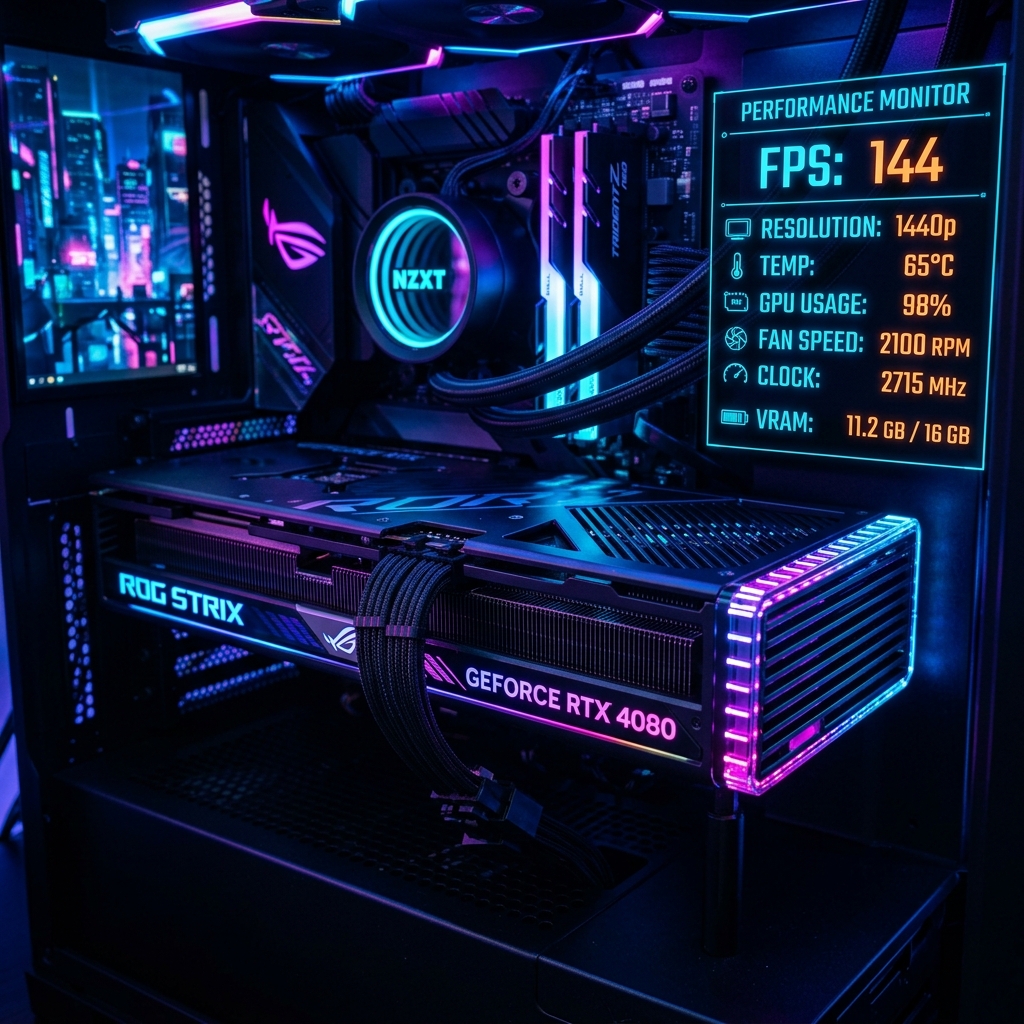
Predicting in-game frame rates before buying new components allows you to make smarter hardware decisions.
One of the most frustrating parts of PC gaming is spending money on new hardware only to find the frame rate improvement is smaller than expected — or discovering a bottleneck you didn't anticipate. Before you upgrade your GPU, CPU, or monitor, it helps to know roughly what frame rate you'll actually get in the games you play. That's exactly what our Gaming FPS Estimator is built for.
This guide explains the real factors that determine your in-game FPS, why the same GPU can perform very differently across two systems, and how to use estimation tools to make smarter upgrade decisions.
What Actually Determines Your FPS?
Frame rate isn't determined by a single component — it's the result of several factors working together, and the weakest link in that chain sets your ceiling.
Graphics Card (GPU)
The GPU renders the actual frames, handling lighting, textures, shadows, and effects. In most modern titles, especially at higher resolutions like 1440p and 4K, the GPU is the dominant factor in FPS.
Processor (CPU)
The CPU handles game logic, AI, physics calculations, and feeds draw calls to the GPU. At lower resolutions like 1080p, or in CPU-intensive genres like simulation and strategy games, the CPU can become the limiting factor even with a powerful GPU installed.
Resolution
Higher resolutions require the GPU to render significantly more pixels per frame. Moving from 1080p to 1440p roughly increases pixel count by 78%, and 4K roughly quadruples the pixel count of 1080p — which is why the same GPU can deliver dramatically different frame rates purely based on resolution.
Graphics Presets and Settings
Ultra settings enable the most demanding shadow quality, texture resolution, ray tracing, and post-processing effects. Dropping from Ultra to High or Medium can recover significant FPS with often minimal visual difference, especially in fast-paced competitive titles where visual fidelity matters less than smoothness.
RAM Speed and Capacity
Insufficient RAM can cause stuttering as the system swaps data to slower storage. RAM speed also has a smaller but measurable effect on frame rates in certain CPU-bound titles.
Game Engine and Optimization
Some game engines are simply more efficient than others. Two titles with similar visual fidelity can have very different hardware demands depending on how well-optimized the underlying engine is.
Why the Same GPU Performs Differently on Different Systems
It's common to see two people with an identical GPU report different FPS numbers in the same game. This usually comes down to:
- CPU pairing — a powerful GPU paired with an older or budget CPU may be CPU-bottlenecked, especially at 1080p.
- RAM configuration — dual-channel vs single-channel RAM, and RAM speed, can meaningfully affect frame rates.
- Background processes — overlays, browsers, and background apps consume CPU cycles and VRAM.
- Driver and game version differences — performance patches and driver updates can shift FPS by a noticeable margin over time.
- Thermal throttling — poor cooling can cause a GPU or CPU to reduce clock speeds under sustained load, quietly lowering FPS in longer sessions.
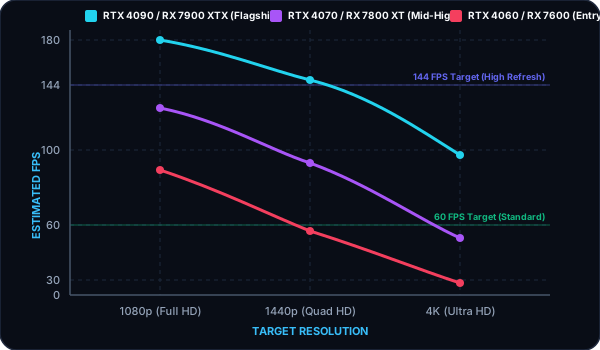
Figure 2: Expected performance drop as target resolution increases across different graphics card tiers.
How Our Gaming FPS Estimator Works
Instead of digging through scattered benchmark videos and forum posts trying to match your exact setup, our Gaming FPS Estimator predicts your expected FPS range using your actual hardware and settings.
To use it:
- Select your GPU and CPU from the list.
- Choose your target resolution (1080p, 1440p, or 4K).
- Select the game or game genre you're interested in.
- Pick a graphics preset (Low, Medium, High, Ultra).
- Get an estimated FPS range instantly.
Because the estimator accounts for both GPU and CPU pairing, it can flag likely bottlenecks — for example, warning you if a high-end GPU paired with a weaker CPU won't fully show its performance potential at 1080p.
A Practical Example
Consider a mid-tier GPU paired with a six-core CPU at 1080p on High settings in a popular competitive shooter. In this scenario, the estimator typically predicts smooth triple-digit frame rates, since competitive shooters tend to be well-optimized and less GPU-demanding than graphically heavy single-player titles.
Now take the same hardware in a demanding, ray-traced open-world title at 1440p Ultra settings. Here, the estimate drops substantially, often into a range where the player would want to consider dropping settings to High or Medium, or enabling upscaling technology, to maintain a smoother experience.
This is the kind of before-you-buy insight that turns a guess into an informed decision — whether you're deciding on a new GPU, a higher-refresh monitor, or simply the right settings for your current rig.
Tips to Improve FPS Without New Hardware
- Lower shadow quality and post-processing effects first — they're often the most demanding settings with the least visible payoff.
- Enable upscaling technologies (like DLSS, FSR, or XeSS where supported) to boost frame rates with minimal visual compromise.
- Update GPU drivers regularly, since performance patches can meaningfully improve FPS in specific titles.
- Close background applications and browser tabs that consume CPU and VRAM.
- Ensure adequate cooling to avoid thermal throttling during long sessions.
FAQs
- Can an FPS estimator be 100% accurate? No estimator can predict an exact number down to the frame, since real-world FPS depends on scene complexity, background load, and driver versions. Estimators give a realistic expected range based on known hardware performance data, which is highly useful for planning purposes.
- Does more RAM increase FPS? Beyond a sufficient baseline (typically 16GB for most modern games), additional RAM capacity has diminishing returns on FPS itself, though it can reduce stuttering in memory-intensive titles.
- Is CPU or GPU more important for FPS? It depends on resolution and genre. At 1080p, CPU matters more; at 1440p and 4K, GPU tends to dominate. Competitive, high-frame-rate titles are often more CPU-sensitive than graphically heavy single-player games.
- Will upgrading my monitor improve my FPS? No — a higher refresh-rate monitor lets you see more of the frames your system is already producing, but it doesn't increase how many frames your hardware generates. You'd still need to hit the higher frame rate with your GPU/CPU to take full advantage.
Try It Yourself
Stop guessing and get a hardware-specific FPS prediction for the exact games and settings you care about. Open the Gaming FPS Estimator and see what your setup — or your next upgrade — can really deliver.
Interactive Inline Calculator
Adjust target values below to run formulas in real-time instantly.
Adjust Inputs
Calculated Results
Join 10,000+ Students
Get our weekly Band 7+ IELTS vocabulary cheat sheet and exam strategies delivered straight to your inbox.