What Is a GPU Bottleneck (And How Bad Is Yours)? Full Guide + Free Calculator

Understanding CPU and GPU balance is key to maximizing gaming performance and avoiding costly hardware mistakes.
You've upgraded your graphics card expecting a big frame rate boost, but the numbers barely moved. Or maybe your GPU usage sits at a suspiciously low percentage while gaming, even though the fans are spinning up. Both are classic symptoms of a bottleneck — a mismatch between your CPU and GPU that prevents your system from reaching its full performance potential.
This guide explains exactly what a bottleneck is, how to recognize one, and how to calculate your specific bottleneck percentage using our GPU Bottleneck Calculator before you spend money on the wrong upgrade.
What Is a Bottleneck, Exactly?
In a gaming PC, the CPU and GPU work together in a continuous handoff: the CPU calculates game logic, physics, and AI, then sends draw call instructions to the GPU, which renders the actual frame. A bottleneck occurs when one component can't keep up with the other, forcing the faster component to sit idle waiting for data.
- A CPU bottleneck happens when the CPU can't feed the GPU with instructions fast enough, so the GPU sits underutilized even though it's capable of rendering more frames.
- A GPU bottleneck happens when the GPU is the limiting factor — it's working at or near 100% usage and simply can't render frames any faster, regardless of how fast the CPU is.
Some degree of imbalance is completely normal and expected in any build — the real question is *how much* of a bottleneck exists, and whether it's significant enough to matter for your actual usage.
Signs You Might Have a Bottleneck
- Low GPU usage during gameplay (well below 90–95%) while frame rates remain modest — a strong sign of a CPU bottleneck.
- GPU usage pinned at 99–100% with frame rates below what review benchmarks suggest your card should achieve — a sign of a GPU bottleneck.
- Frame rate barely improves after a GPU upgrade — indicates your CPU was already the limiting factor before the upgrade.
- Stuttering or inconsistent frame times in CPU-heavy scenes (large crowds, complex physics, strategy-game late-game states) even when average FPS looks fine — often a CPU-side symptom.
- Frame rate scales down significantly at lower resolutions rather than staying similar or improving — since lower resolutions shift load away from the GPU and expose CPU limitations.
Why Bottlenecks Aren't Always a Problem
It's important to understand that a small bottleneck is not necessarily something to "fix." Every combination of CPU and GPU will favor one side slightly depending on the game, resolution, and settings. A 5–10% bottleneck is generally considered normal and not worth chasing. The real question is whether the imbalance is large enough (often cited around 10–15%+ in enthusiast circles) to be meaningfully limiting your performance and worth addressing through an upgrade or settings change.
Bottlenecks also aren't static — the same hardware pairing can show a CPU bottleneck in one game and a GPU bottleneck in another, depending on how each title balances rendering load versus logic/physics load.
Factors That Influence Bottleneck Severity
Resolution
Higher resolutions shift the workload toward the GPU (more pixels to render), which often reduces the *relative* impact of a CPU bottleneck. Lower resolutions do the opposite, putting more emphasis on how fast the CPU can issue instructions.
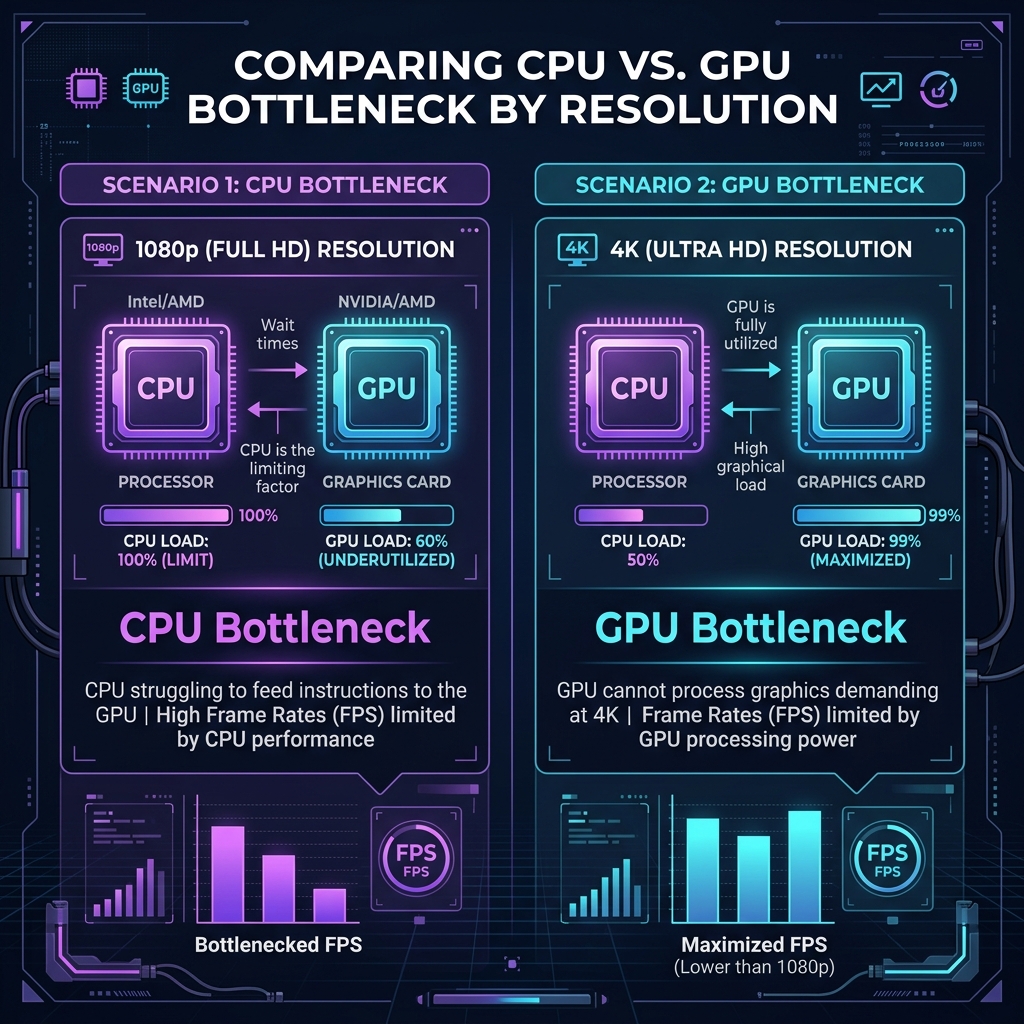
Figure 2: Resolution scaling dramatically shifts system load. Raising resolution is a simple way to mitigate a CPU bottleneck.
Game Genre
Open-world games with dense NPC counts, physics-heavy titles, and simulation/strategy games tend to be more CPU-demanding. Graphically intensive but logic-light titles (many singleplayer, story-driven games) tend to lean GPU-heavy.
Core Count vs Clock Speed
Some games benefit more from higher core counts (multi-threaded workloads), while others benefit more from raw single-core clock speed. A CPU that excels in one game may bottleneck in another with a different threading profile.
Background Load
Streaming software, browser tabs, Discord overlays, and background applications all consume CPU cycles that would otherwise go to the game, artificially worsening a CPU bottleneck.
How Our GPU Bottleneck Calculator Works
Rather than relying on generalized "these two parts don't match" claims you might see in forum threads, our GPU Bottleneck Calculator estimates your specific bottleneck percentage based on your actual CPU, GPU, resolution, and game selection.
To use it:
- Select your CPU and GPU models.
- Choose your target resolution.
- Select the game or game category you're interested in.
- Get an estimated bottleneck percentage, along with which component (CPU or GPU) is the likely limiting factor.
The calculator adjusts its estimate based on resolution and game type, since — as covered above — the same hardware pairing can shift between CPU-bound and GPU-bound depending on those two variables.
A Practical Example
Take a high-end GPU paired with a budget quad-core CPU at 1080p in a fast-paced, physics- and AI-heavy open-world title. In this scenario, the calculator would typically flag a meaningful CPU-side bottleneck, since the GPU's rendering capability far outpaces what the CPU can feed it at that resolution.
Shift the resolution to 4K with the same hardware, and the bottleneck percentage typically shrinks substantially, since the GPU now has far more rendering work per frame, rebalancing the load back toward the GPU.
This resolution-dependent shift is exactly why "is my CPU bottlenecking my GPU" doesn't have one universal answer — it depends on what and how you're playing, which is why a calculator that accounts for your specific combination is far more useful than a generic compatibility chart.
What To Do If You Have a Significant Bottleneck
- Raise your resolution or graphics settings if you're CPU-bound — this doesn't increase your FPS, but it utilizes the idle GPU power to give you better visuals for the same performance.
- Reduce background processes — closing unnecessary overlays and applications frees up CPU cycles.
- Adjust in-game settings that are CPU-dependent — draw distance, NPC density, and physics detail are often more CPU-taxing than purely visual settings like textures and shadows.
- Consider whether the bottleneck actually matters for your use case — if you're already hitting your monitor's refresh rate or your target frame rate, a moderate bottleneck may not be worth addressing at all.
FAQs
- Is a bottleneck always bad? No. A small percentage imbalance is normal in virtually every system. It only becomes a practical concern when it's large enough to meaningfully cap your frame rate below what you need or expect.
- Can upgrading RAM fix a bottleneck? RAM can help in some cases, particularly if you're running below recommended capacity or with single-channel configuration, but it's rarely the primary fix for a genuine CPU-GPU bottleneck.
- Does bottlenecking damage my hardware? No, a bottleneck is a performance limitation, not a hardware safety issue. It won't cause damage — it simply means you're not getting maximum performance from your most powerful component.
- Should I buy a new CPU or new GPU first? Use a bottleneck calculator for your specific games and resolution before deciding. If your CPU is consistently the limiting factor across your most-played titles, a CPU upgrade will likely yield a bigger real-world improvement than a GPU upgrade, and vice versa.
Try It Yourself
Don't rely on generic compatibility charts — get a bottleneck percentage specific to your exact CPU, GPU, resolution, and game. Open the GPU Bottleneck Calculator and find out which component is really holding your system back.
Interactive Inline Calculator
Adjust target values below to run formulas in real-time instantly.
Adjust Inputs
Calculated Results
Join 10,000+ Students
Get our weekly Band 7+ IELTS vocabulary cheat sheet and exam strategies delivered straight to your inbox.